
The best way to distribute video content is to decide where each video will live before you film it, then plan the shoot around every version you'll need. Host the full video on your website with a business video player, upload it to YouTube for search, and cut short native clips for LinkedIn, your sales team, and your newsletter. Get every version approved in one round, publish each one natively, and measure each channel against the job it's there to do.
Most B2B videos get one big launch post, then end up on a page nobody visits, somewhere between the old holiday greeting and the CEO welcome from two rebrands ago. That's a lot of budget (and a lot of stakeholder sign-offs) for one good week. Here's how to plan distribution so your video keeps working for months, in the order it actually happens.
Where to distribute your video content
Each place your video goes has a different job, so decide those jobs before anything else. Everything else in this post (what you shoot, how you cut it, where you upload it) follows from these choices.
Your website: home base
Your website is where serious buyers go to check you out, so the full video belongs on the page it supports, like your homepage, a service page, or your careers page. Host it with a business video player, and skip the YouTube embed. A YouTube player comes with YouTube's branding, a "Watch on YouTube" button, and suggested videos when yours ends, and every one of those is an invitation to leave your site. You worked hard to get that buyer onto your service page. It'd be a shame to hand them a cat video. A business player keeps them on your page, matches your brand, and shows you who watched and how much.
We've used the three big ones, and each suits a different kind of team:
Vidyard is built for larger marketing and sales teams. It shows you who watched and for how long, connects to your CRM, and has a lot of sales tools, so it's a strong fit if your reps will be sending video too.
Wistia sits in the middle. It starts at a higher price than Vimeo and gives you detailed data on how people watch your videos, with less of a sales focus than Vidyard.
Vimeo was built with video creatives in mind. It's great for customizing your player, with lighter analytics than the other two.
For our own site, we use Vimeo, because it covers what a small studio needs. For bigger marketing teams, we usually recommend Vidyard or Wistia.
YouTube: your search channel
Treat YouTube like a social channel that happens to be built for search. People go there looking for explainers and how-to content, and YouTube videos show up in Google results too. Upload the video directly, with a title and description written the way your buyers search. Your website and YouTube each get their own upload, because each does a different job.
LinkedIn: the feed
LinkedIn is where your buyers scroll between meetings, so it gets short clips that each make one point, uploaded directly.
Sales emails, newsletters, and events
These take the video straight to people who already know you. Host sales clips on a business video player so reps can send a link or thumbnail, and point newsletter thumbnails back to the video on your website, so every click lands on your turf.
Plan every version before you film
Distribution starts at the scripting stage, because the clips and versions you'll want later have to be planned before anyone films anything. If you want a 9:16 clip for LinkedIn, a 30-second answer your sales team can send, and a cutdown for your newsletter, someone has to plan for each of them before the shoot.
Here's the part that surprises most marketing teams. On a lot of our shoots, around 90% of what gets said on camera never makes the final edit. An interview can capture hours of conversation, and the campaign video it feeds usually runs 60 to 90 seconds. Almost everything you'll distribute after launch is hiding in that leftover footage, but only if the shoot was planned to capture it.
That's why planning can't wait for the edit. You can crop a 9:16 clip out of a shot that was never framed for one, but it won't look great, and you can't pull a standalone answer from an interview that never asked the question.
Before the shoot, decide:
Which channels the video is going to
Which versions each channel needs (length and aspect ratio)
Which standalone clips you want, like an expert answer, a customer quote, or a quick demo
Who needs to approve each version
We build a short list of extra questions into almost every interview we film. It's the cheapest content you'll ever make, because the crew, the lights, and your expert are already there. About 15 extra minutes on set, spent on evergreen questions that aren't tied to this one campaign, is how one day of filming turns into roughly 90 days of content. (We've written more about what happens to the footage that doesn't make the final cut.)
The same goes for paid. Your LinkedIn clips can usually run as video ads too, but connected TV is different. CTV spots usually have to hit a set length, so a clip cut for LinkedIn won't necessarily fit. If CTV is on the plan, tell your production team before the shoot, so the script and the edit are built around that length from the start. Our B2B video strategy playbook for finance and insurance teams covers CTV in more detail.
The last item on that planning list, approvals, is the one most teams leave until the very end. It's also where a lot of launches stall, and we'll get to why shortly.
Cut a version for each channel
Every channel gets its own cut of the video, trimmed, sized, and captioned for how people watch there. Most of it comes down to two aspect ratios: 16:9 (widescreen) for websites, YouTube, email, and presentations, and 9:16 (vertical) for phones and social feeds. Short clips get about as long as it takes a thumb to keep scrolling, so each one makes a single point.
Channel | What to post there | Aspect ratio | Captions |
|---|---|---|---|
Your website | The full video | 16:9 | Caption file, plus a summary on the page |
YouTube | The full video and longer explainers | 16:9, or 9:16 for Shorts | Caption file for 16:9, burned in for 9:16 Shorts |
Short clips that each make one point | 9:16 | Burned in | |
Sales emails and follow-ups | Short clips that each answer one question | 16:9 | Burned in |
Email newsletter | A thumbnail that opens the video on your website | 16:9 | None needed (the video it links to on a website or landing page has them ) |
Blog post | The video, embedded in an article on the same topic | 16:9 | Caption file, plus a transcript on the page |
Events and trade shows | A short clip to open a presentation, or a loop for your booth screen | 16:9 | Burned in, since booths are loud and the sound is often off |
Burned-in captions vs. caption files
Caption every version, because a lot of people watch with the sound off. There are two ways to do it:
Burned-in captions are part of the video itself, like on-screen text. They show up everywhere the video plays and can't be turned off. They're great for branding, since you can style them in your fonts and colours.
Caption files (usually an SRT file) are a separate text file with the full transcript plus time codes, so each line appears at the right moment. You can upload them to most platforms, including YouTube, LinkedIn, and business video players, and viewers can turn them on or off. They're great for SEO, since search engines can read every word.
Use burned-in captions for social and sales clips, where you want them showing no matter what. Use a caption file for longer videos on YouTube and your website. If you publish in French as well, each language gets its own caption file, which is a lot easier than exporting a second version of every video. And if your company has accessibility standards, captions usually aren't optional anyway.
Get every version approved at once
If your videos go through legal or compliance, get every cutdown approved in the same review as the main video. Sending ten clips through review one at a time, weeks apart, is how a two-week launch turns into a two-month one. Nobody on the review chain enjoys that version either.
A complete review package includes:
The main video and every planned cutdown, with a note on where each one will run
Captions and on-screen text for each version
French versions, if you're publishing in Canada
Any claims, numbers, or disclosures that appear in a short clip
That last one matters a ton. A line that's fine inside a three-minute video can read differently as a 20-second clip on its own, so reviewers need to see each clip the way your audience will.
It's a bit more work up front. In return, you get one review instead of ten, and your team can keep posting clips for months without going back to legal every time. Everyone's calendar will thank you.
Publish each version natively
Upload each version directly to the platform it's for, and write the main takeaway into the post itself. A native video plays right in the feed. A link asks people to leave the platform, and most won't.
The post copy matters as much as the upload. Plenty of people scroll past with the sound off and never click "see more," so let the captions carry the video and let the first line of the post give away the point. If someone gets the whole idea without clicking, the post did its job. It feels like giving away the ending. Do it anyway. Put the link to the full video or the page it lives on at the end, for the people who want more.
Then keep it going. One launch post is a start, and a steady run of clips from the same shoot is where the results tend to show up. The Accelerator Centre used its recruitment videos across social and its website throughout each recruitment phase:
By using these videos throughout our recruitment phases, we were able to see twice the amount of applicants come through.
Tessa Uez, Marketing Manager, Accelerator Centre
How do you use video in sales?
Give your sales team short, specific clips they can drop into emails, follow-ups, and proposals right when a buyer has a question. A good sales clip answers one thing, runs about a minute or less, and comes with a note telling the rep when to send it.
The clips reps actually use:
Customer testimonials.
They answer the question every buyer has: does this work for a company like ours?Short demos or walkthroughs.
They show the product or service before anyone books a call.Expert answers.
A subject-matter expert answering the question that comes up on every sales call.Leadership intros.
A quick hello from an executive for a big account or a new partner.
What's missing from that list: the full three-minute brand film, attached to a cold email. Nobody's watching that between meetings.
Personalized video can go even further. A personalized video campaign we produced for Sun Life saw an 88% email open rate and a 62% click-through rate.
Whatever you make, keep it somewhere reps can find it. A shared folder with a one-line note on each clip (who it's for, when to send it) gets used. A folder full of files named "final_v3_REAL_use-this-one.mp4" gets ignored, and honestly, fair.
What to measure on each channel
Measure each channel against the job you gave it, using the analytics that channel actually gives you. Some platforms tell you a lot. Others tell you surprisingly little, so it helps to know what you're working with before you report up.
Your website:
The most detail of any channel, as long as you're using a business video player. Vidyard, Wistia, and Vimeo all show plays, watch time, how much of each video people watched, and where they dropped off, plus clicks on any calls to action inside the player. Vidyard and Wistia can also show which known contacts watched.YouTube:
YouTube Studio gives you views, watch time, audience retention (how much of the video people stick around for), and how people found it, including the search terms they used.LinkedIn:
Views, watch time, average watch time, reactions, comments, and reposts, plus a breakdown of viewers by job title, company, and location. Regular posts don't show a completion rate (paid video ads do), and LinkedIn won't tell you who individual viewers are unless they engage.Sales emails:
If reps send clips from a business video player, they can see whether a prospect watched and for how long. Then track replies, meetings, and the deals a clip was part of.Email newsletter:
Click-through to the full video.
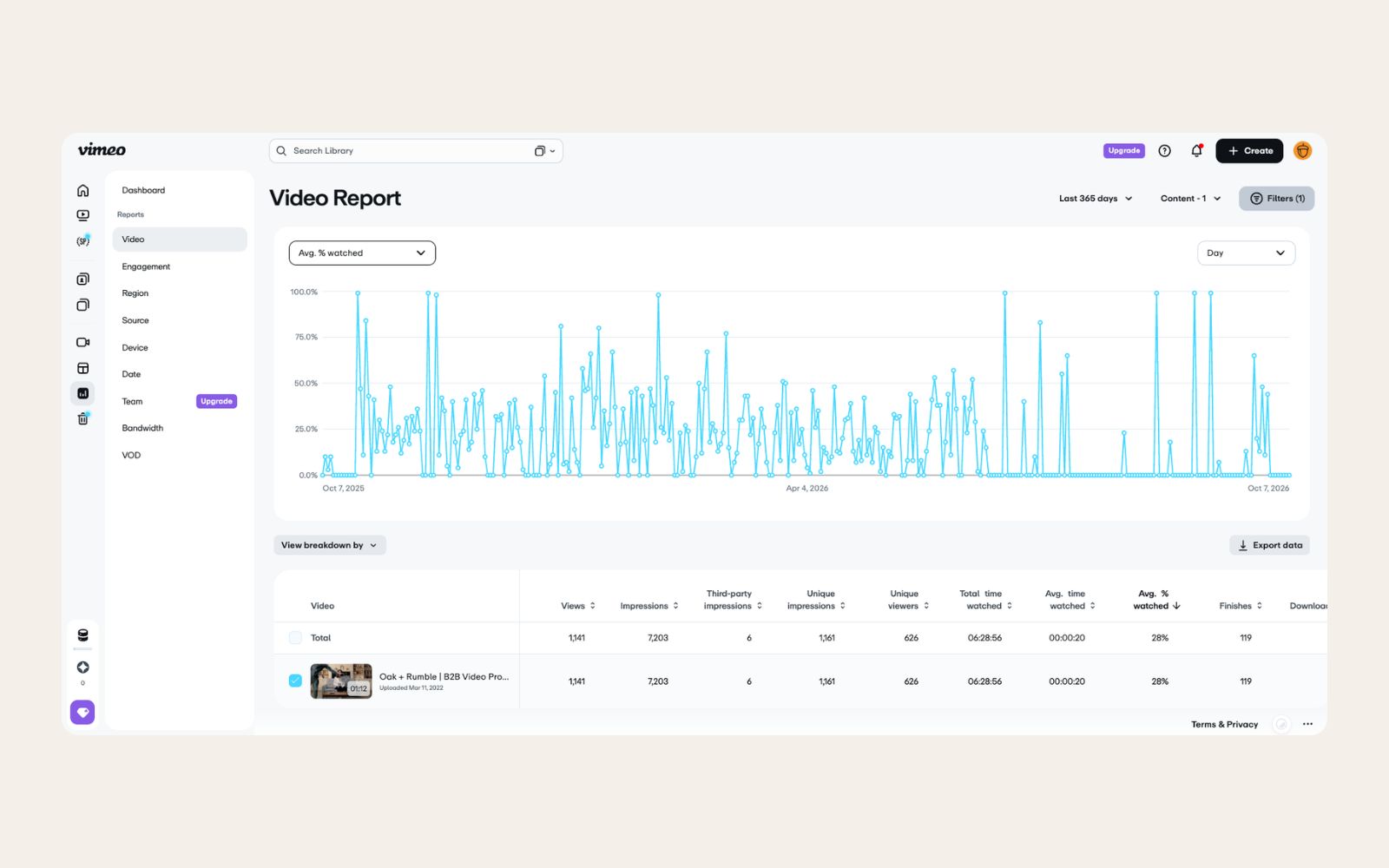
One more thing about LinkedIn: don't judge a clip by its comments. Most people on LinkedIn read and watch without ever reacting, commenting, or posting. A clip with five likes may still have been watched by the exact VP you're trying to reach, so check views, watch time, and the viewer breakdown before deciding something flopped.
If you're reporting up to leadership, it helps to track signs of buying intent, since a view count on its own mostly tells you someone's thumb paused for a second. We dig into that in our guide to measuring B2B video ROI.
Frequently asked questions
How long should each version of a video be?
It depends on where the video is going. The full video on your website usually works best under two minutes, while clips for social feeds should be shorter and make a single point. See our guides to how long website videos should be and how long social videos should be.
Should every clip go on every channel?
No. Pick the channels where your buyers actually spend time and do those well. A clip that works on LinkedIn might not belong in a sales email, and a newsletter feature doesn't need its own YouTube Short. Fewer channels done properly will do more than every channel done in a rush.
How often can we reshare the same video?
More often than most teams do. A lot of your audience missed it the first time, and a new clip from the same shoot, with a new angle in the post copy, works as fresh content. Plan reshares into your content calendar so they actually happen.
If you're not sure how your team's video distribution stacks up, the Video Benchmark Assessment takes three minutes (less time than finding the final version of a video in a shared drive) and shows where your video strategy has gaps.